I’ve changed my internet connection over from Virgin to Vodafone to save money. It was roughly half the price for the same speed. I don’t want to have a Vodafone (or any other ISP) router on my home network. They can remotely access the routers and update them. I can’t see why anyone would take the risk on providing access to your home network to companies which like to sell data to 3rd parties. So I recommend using a high-quality router which you control.
When I was with Virgin internet, I configured their router to act as a bridge / modem through to my personal router. Unfortunately, the Vodafone routers are very basic and don’t have this capability.
There are two options:
1) Replace their router with another modem + router.
The Vodafone routers are very basic. It is sometimes a Vodafone THC3000 or THC3000g which is actually a rebranded Technicolor DGA4231 / DGA2231 router. I found a list of compatible routers + models which from an old Vodafone forum post, which is now deleted.
Here is the list of routers which are known to work with Vodafone internet:
- Asus AC68U
- ASUS DSL-AC55U
- DrayTek Vigor 130
- DrayTek 2762 VDSL
- DrayTek 2862 Series
- FritzBox 3490
- Technicolor TG589vac
- Netgear D6400-100UKS
- Netgear Rbk40
- Netgear D6220
- Netgear Nighthawk D7800
- Technicolor DGA4231 / DGA2231
- TP-Link Archer VR2800
- TP-Link AC1600
- TP-Link Archer VR400 V3 (AC1200 Wireless MU-MIMO Dual Band)
- TP-Link VR600
- TP-Link W9970
- Zyxel VMG3925-B10B
Note: If you find another router which works perfectly (i.e. reliably) with Vodafone internet, then please add to the comments, and I’ll update this post.
Router setting for Vodafone internet connections.
You will then need settings to enable the router to connect. Vodafone doesn’t provide these details as standard with their setup instructions. You will need to speak to their technical support desk. Ask for DSL username and password to work with your own router. From then on, you are on your own. They texted it through and they look something like this:
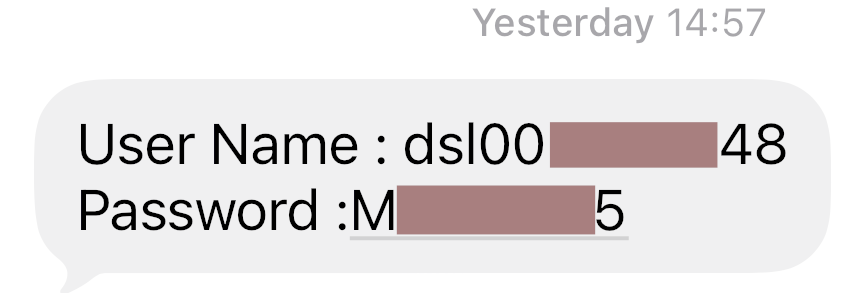
The type of connection used (if you are on full fibre) is FTTP which is a PPPoE connection. The setting shown below will be the same for all routers.
- Vlan ID – 101
- Username – ******@broadband.vodafone.co.uk
- Username – ******@businessbroadband.vodafone.co.uk (for business customers)
- Password – ********
- PPPoE
- MTU Size : 1492
- enable 802.1q (not on every router)
Rest of the setting auto-detect when the router and the DSLAM are negotiating with each other.
Notes:
- Vodafone gives you the username without the @broadband.vodafone.co.uk or sometimes say @vodafone.co.uk. You may need to try all variations. dslxxxxxxxx or dslxxxxxxx@broadband.vodafone.co.uk or dslxxxxxxx@vodafone.co.uk
- Vlan ID – sometime people say 101 or other times 911. You may need to try both.
Ubiquity Dream Hub / Machine / Pro…. will you work?
The problem for me is that my Ubiquity Dream Hub didn’t work – it isn’t on the compatibility list. I think this is because it doesn’t have the option for MTU Size adjustment setting. You can use MSS Clamping like so.
- In UniFi Network:
- Go to Settings > Internet > WAN
- Look for “Advanced”
- Enable MSS Clamping
- Set: PPPoE: 1452
- VPN-heavy traffic: 1350–1400
This avoids fragmentation without changing MTU and is stable across reboots and updates.
However, I didn’t want to mess with this….. so I did the alternative method:
2) Chain your routers together….
If your router is incompatible with Vodafone (OpenReach), then you can chain them together like so:
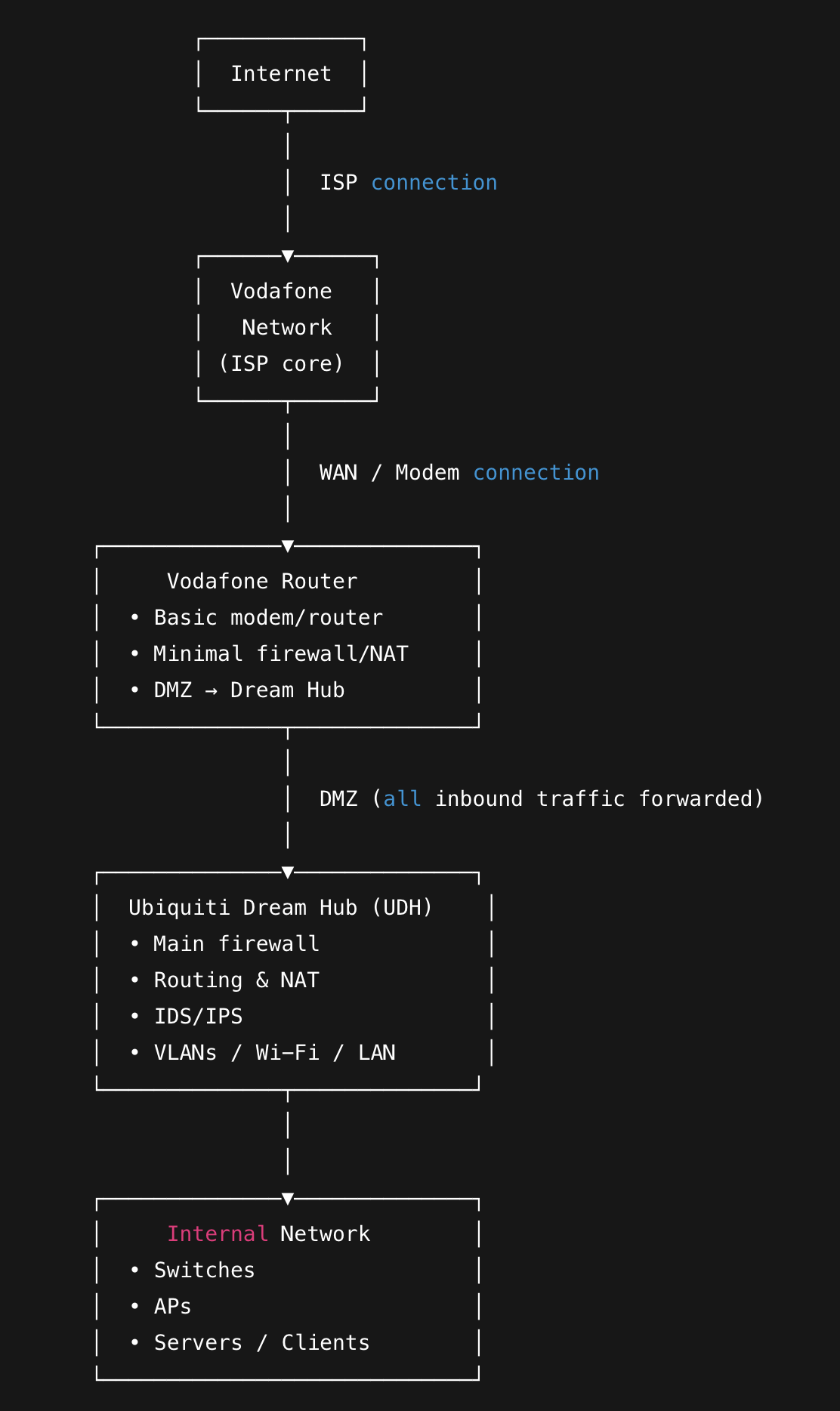
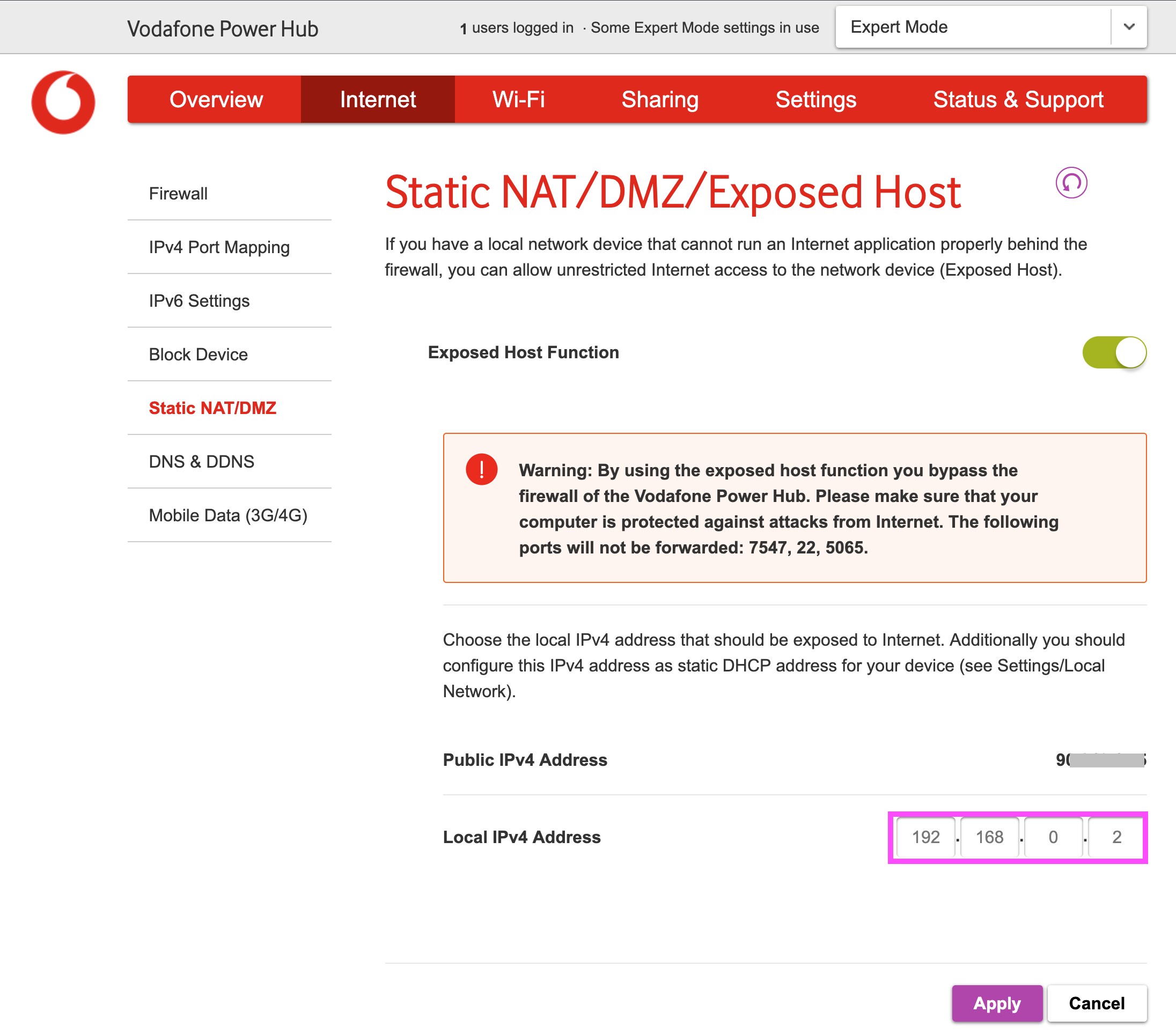
Note: You can’t turn your Vodafone into a bridge, but you can make behave in a very similar way. You can put your existing router (in my case a Ubiquity Dream Hub which I love) into a DMZ (Demilitarized Zone) which means that any traffic coming from the internet is sent to this device. Here is how to do this:
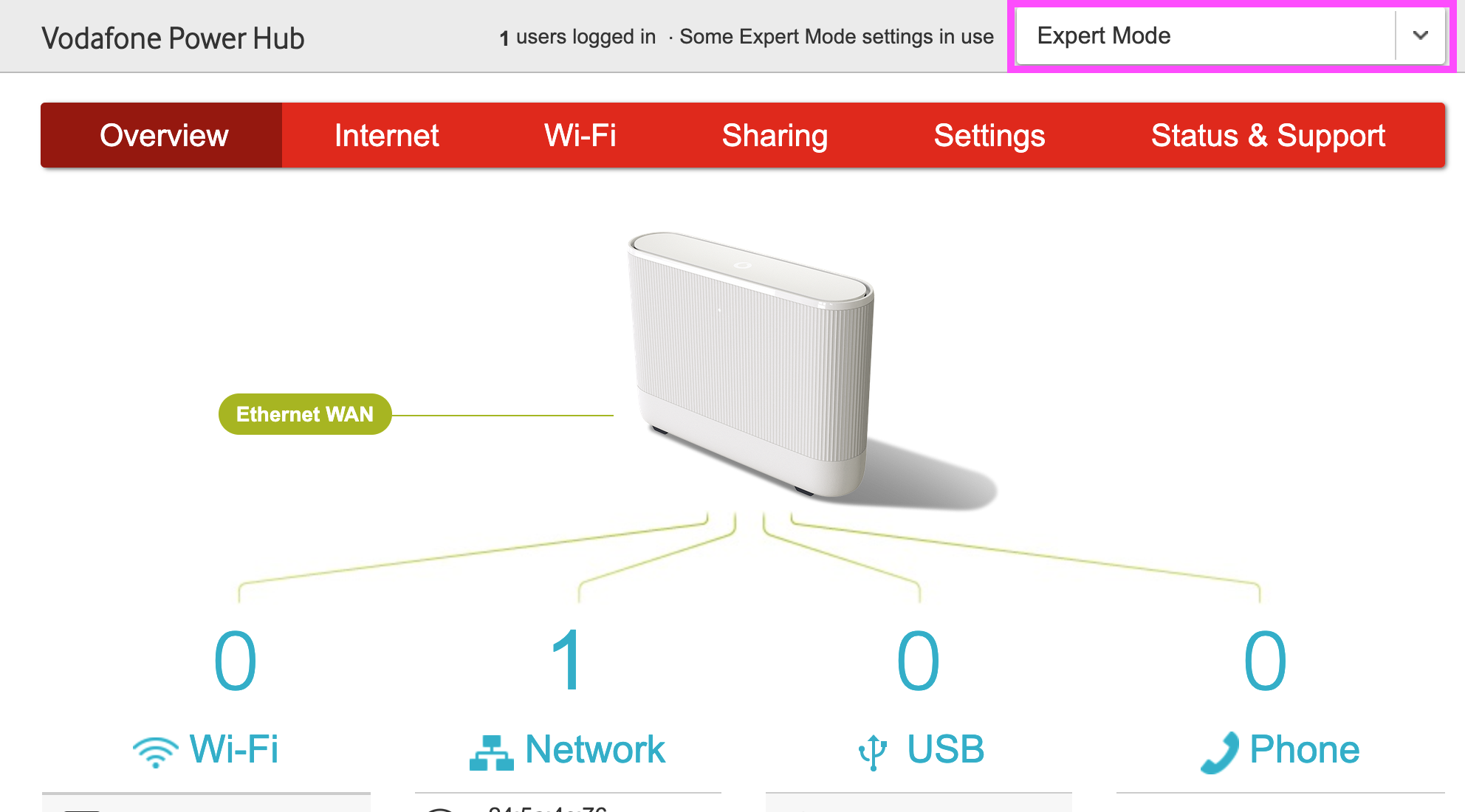
1. Put your Vodafone router into Expert Mode.
Log in and select “Expert Mode” at the top right.
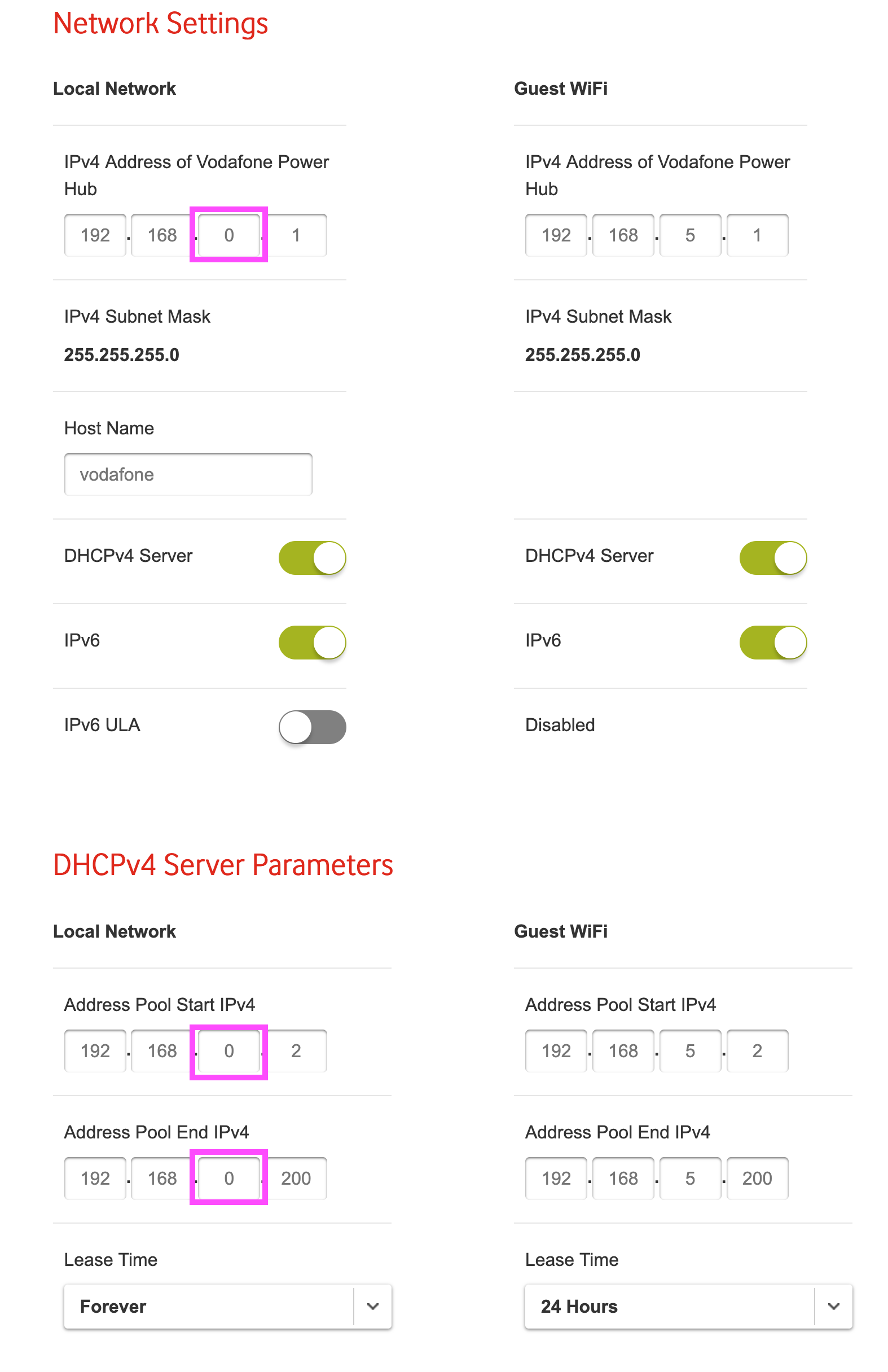
2. Ensure your Vodafone network subnet is different from the other router
Vodafone routers are set to the 192.168.1.0 subnet as standard. My existing router already operates on this subnet, so I changed the Vodafone router to 192.168.0.0. I have done a screenshot and shown the numbers that I changed:
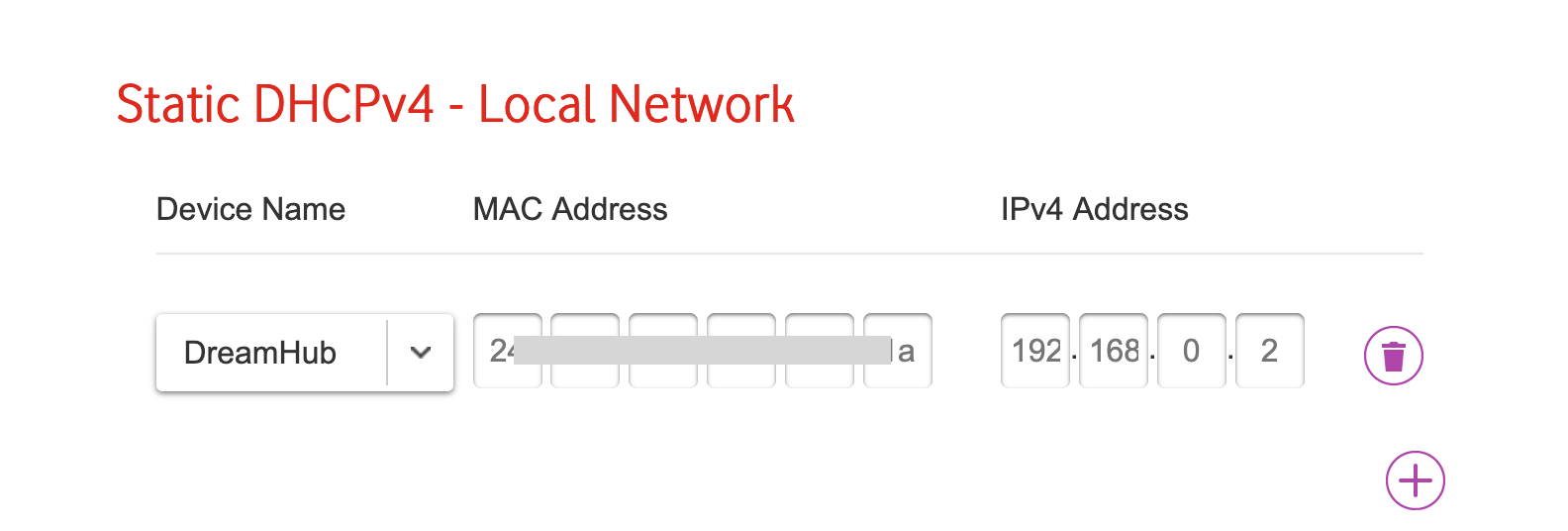
3. Give your personal router a fixed IP address on the Vodafone router
Before putting your other router into the DMZ – you need to give it a fixed IP address. If you don’t, then it could move IP address at some point. You will need to log into your existing router and find its MAC address. It is sometime printed on the back of the router. I’ve covered over the MAC address of my router.
4. Put your other router into DMZ
You can put your router (based on its IP address) into the DMZ like so:
5. Connect your old router
You then plug your old router into the Vodafone router. Your old router should now be connected to the Vodafone router and be able to access the internet.
I hope this helps someone. Let me know.